
How it works
From installation to a safer cleanup
Unfollow Assistant works inside your existing Instagram tab. It compares complete lists, lets you protect exceptions, and keeps every action under your control.
Three steps
Your first cleanup in minutes
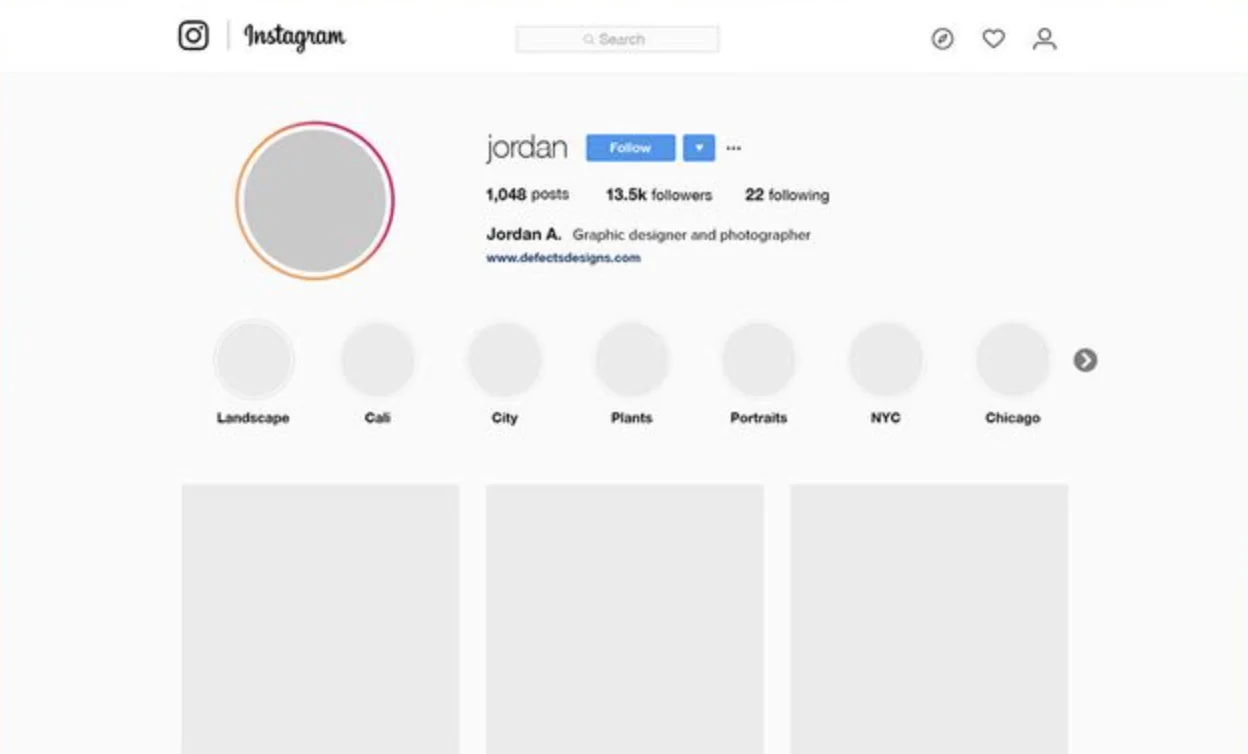
Sign in and open your profile
Add Unfollow Assistant to desktop Chrome, sign in to Instagram, and open your own profile. Stay logged in and keep this Instagram tab open while you use the extension.
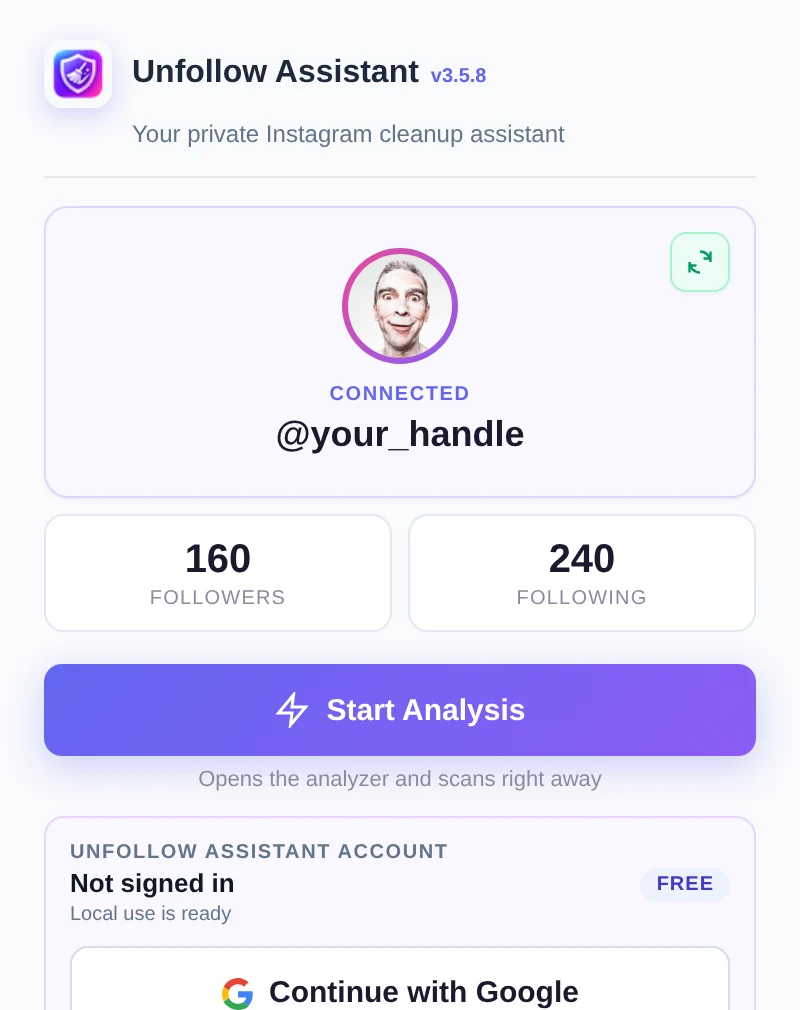
Open the extension and start
Select the Unfollow Assistant icon in Chrome, confirm your Instagram account is connected, then select Start Analysis. Stay logged in and keep the Instagram tab open while both your followers and following lists load.
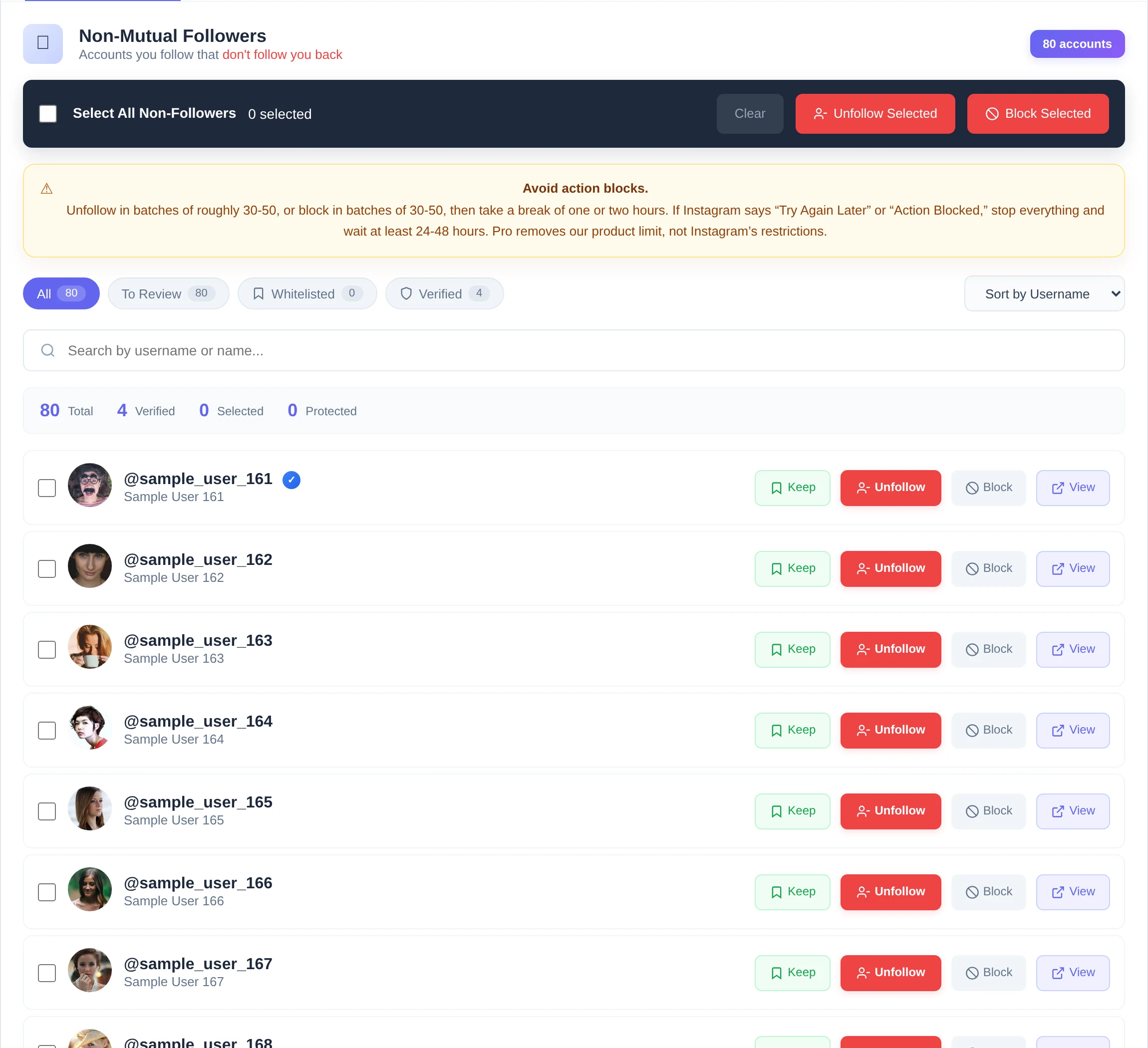
Review, Keep, and act
Look through your non-followers. Press Keep on anyone you want to protect, then unfollow or block one account at a time, or select several and start a queue.
Pause, resume, or stop
A bar at the bottom shows who is next, how many are done, and a live countdown. Pause, resume, or stop whenever you like.
Keep is always respected
Kept accounts are skipped by Select All and checked again right before every action.
Nothing partial is saved
If a scan is interrupted, your last complete result stays in place, so real followers never show up as non-followers.
Track who unfollowed you
Each complete scan is compared with the previous one. People who change their username or follow you again are not counted.
Free
Every feature included
Scanning, Keep, unfollow, block, queues, saved scans, and Who Unfollowed Me, with 50 combined unfollow or block actions per day.
Pro
No daily limit
Everything in Free without our daily allowance. Instagram's own limits still apply, so keep pacing your batches.
View pricingWithout an account
Scanning, Keep, unfollowing, blocking, saved scans, and history continue to work locally in Chrome.
When you sign in
Your plan is recognized and protected accounts and action history can be backed up to your account.
Responsible pacing
Rapid or repetitive activity can trigger Instagram restrictions. Our conservative recommendation is batches of roughly 30 to 50 with an hour or two between them, but no schedule is guaranteed.
Instagram safety guide
If you see “Try Again Later,” stop
These messages are action blocks applied by Instagram when activity looks unusually fast or repetitive. Unfollow Assistant cannot remove them, and repeatedly retrying can make the restriction last longer.
Velocity: why speed causes action blocks
Instagram does not only look at a daily total. It can evaluate how quickly actions arrive, how repetitive they are, your account history, and other signals it does not publish. A burst of hundreds of rapid actions can look automated even when you started it yourself.
Our conservative recommendation is the extension’s 32-second default, or its slower 45-second option, with batches of roughly 30 to 50 followed by a one-to-two-hour break. Instagram publishes no universal safe interval or batch size, so this guidance cannot guarantee that a restriction will not occur.
Avoid concurrent Instagram management activity. Separate extensions keep their own data apart, but Instagram can receive their combined account activity. If you use another Instagram management extension, avoid running scans or account actions in multiple tools at the same time. A 429 Too Many Requests response, “Try Again Later,” or “Action Blocked” means stop instead of retrying.


Stop all queued actions
Do not keep retrying unfollows, blocks, follows, or repeated scans. Pause the extension and leave the account alone.
Wait before trying again
Our conservative recovery guidance is to wait 24 to 48 hours. If Instagram still shows the warning, wait longer. When it clears, restart with a very small batch; recovery time varies and is not guaranteed.
Unlimited is not risk-free
Pro removes our product allowance only. Instagram sets its own unpublished limits, which vary by account and activity.
Need another answer?
Read the detailed FAQ or ask us directly.